Microsoft Word remains the go-to word processor for millions of users worldwide. Whether you’re drafting a simple memo or a complex academic paper, MS Word offers a suite of features designed to streamline your workflow. One of the most powerful, yet often underutilized, sections of the application is the References tab.
Before diving into your next project, it’s essential to understand how these tools work. Familiarizing yourself with the menu functions beforehand will save you from confusion mid-task and allow you to navigate the software like a pro. Simply put, knowing your way around the toolbar makes document creation much more efficient.
In previous articles, we’ve covered the Home, Insert, Design, and Layout tabs. Today, we’re taking a deep dive into the References menu in Microsoft Word (applicable to versions 2007, 2010, 2013, 2016, 2019, and Microsoft 365).
Understanding References Tab and Ribbon in Microsoft Word
The References tab is primarily designed for managing citations, sources, and academic formatting. It is an indispensable tool for anyone writing research papers, theses, dissertations, manuscripts, or formal reports.
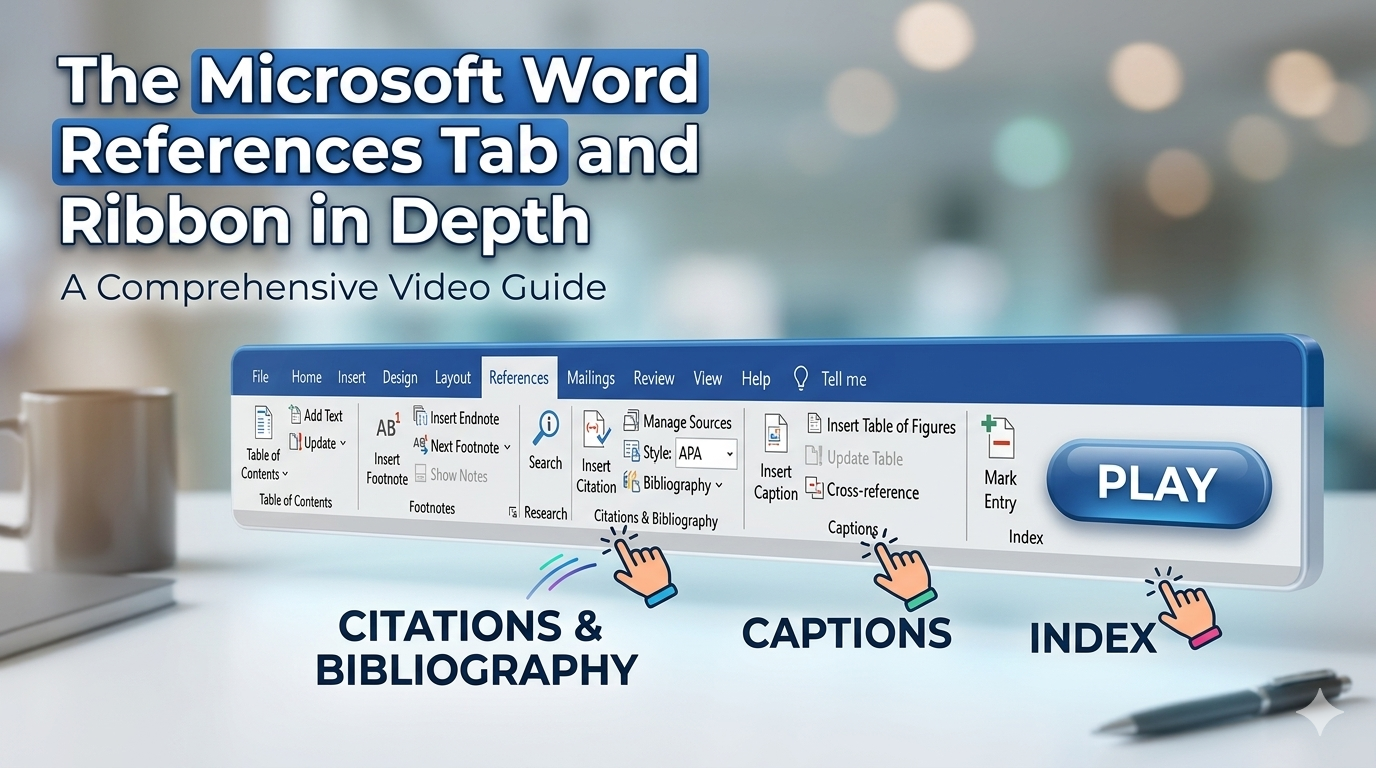
The tab is organized into seven distinct groups: Table of Contents, Footnotes, Research, Citations & Bibliography, Captions, Index, and Table of Authorities. Each group contains specific icons and tools to help you credit your sources and organize your document’s metadata.
Here is a breakdown of every tool found within the References menu:
1. Table of Contents
- Table of Contents: Automatically generates a table of contents based on your document’s headings.
- Add Text: Allows you to include the current heading or text as an entry in the table of contents.
- Update Table: Refreshes the table of contents so that all entries and page numbers stay accurate after you’ve made changes to the document.
2. Footnotes
- Insert Footnote: Adds a note at the bottom of the current page providing more info or citations.
- Insert Endnote: Adds a citation or commentary at the very end of the document.
- Next Footnote: Quickly jumps to the next footnote in your text.
- Show Notes: Immediately scrolls to where the footnotes or endnotes are located.
3. Research
- Search: A built-in tool to look up definitions, images, webpages, and other online resources without leaving Word.
4. Citations & Bibliography
- Insert Citation: Credits a source of information by citing a book, article, or other material.
- Manage Sources: Opens a master list to organize and edit all sources cited in your document.
- Style: Allows you to choose your required citation style, such as APA, Chicago, or MLA.
- Bibliography: Automatically generates a bibliography or “Works Cited” list of all sources used.
5. Captions
- Insert Caption: Adds a labeled tag (e.g., “Figure 1”) to a photo or object.
- Insert Table of Figures: Creates a list of all captioned objects and their page numbers for quick reference.
- Update Table:* Refreshes the Table of Figures to include any new entries.
- Cross-reference: Creates a hyperlink to specific parts of your document, such as a specific heading, figure, or table.
6. Index
- Mark Entry: Includes selected text in the document’s index.
- Insert Index: Adds a list of keywords and the page numbers where they appear.
- Update Index: Updates the index list to ensure page numbers are correct.
7. Table of Authorities
- Mark Citation: Adds selected text (usually legal cases or statutes) to the Table of Authorities.
- Insert Table of Authorities: Creates a list of cases, statutes, and other cited authorities used in legal documents.
- Update Table: Refreshes the table to include all recently marked citations.