Microsoft Word remains the go-to word processor for millions of users worldwide. It’s packed with features designed to streamline document creation, and one of the most powerful—yet often overlooked—sections is the Review menu.
Before diving into your next project, it’s essential to understand how these tools work. Familiarizing yourself with these icons will not only speed up your workflow but also ensure your documents are polished and professional.
In my previous articles, we’ve covered the Home, Insert, Design, Layout, References, and Mailings tabs. Today, we’re going to break down everything you need to know about the Review tab.
Review Tab in Microsoft Word
Essentially, the Review tab is your document’s final checkpoint. It allows you to audit your draft—checking for spelling and grammar errors, translating text, tracking edits, and adding comments.
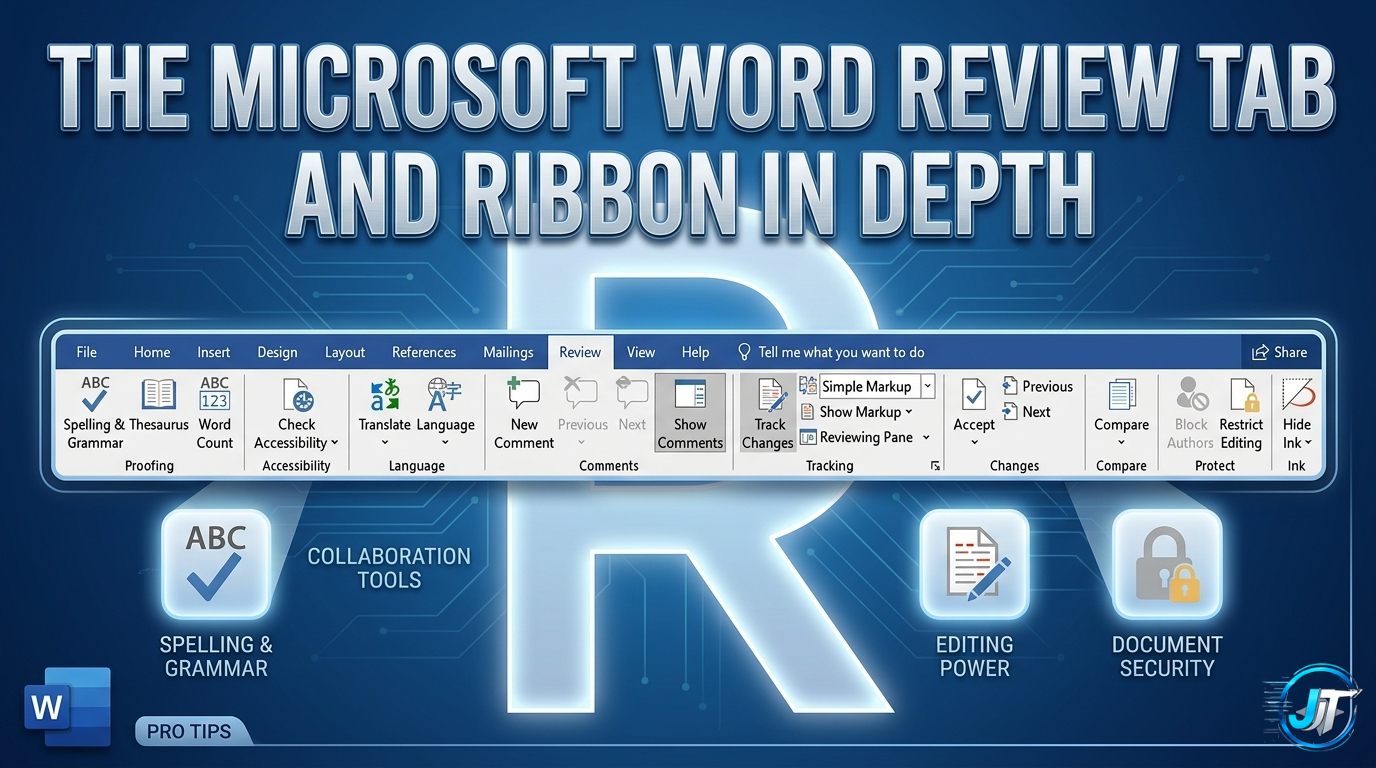
In modern versions of Word (2007 through 2019 and Microsoft 365), the Review ribbon is organized into nine key groups: Proofing, Accessibility, Language, Comments, Tracking, Changes, Compare, Protect, and Ink.
Here is a breakdown of the functions found in each group:
1. Proofing
- Spelling & Grammar: Your first line of defense against typos and grammatical slips.
- Thesaurus: A lifesaver when you’re struggling to find the right word or want to avoid repetitive language.
- Word Count: Provides a quick snapshot of your word, character, and line counts.
2. Accessibility
- Check Accessibility: Ensures your document is easy for people with disabilities to read and edit by suggesting formatting improvements.
3. Language
- Translate: Uses Microsoft’s online service to translate your content into different languages.
- Language: Lets you set the specific proofing language for the spell-checker.
4. Comments
- New Comment: Adds a digital “sticky note” to the document.
- Delete: Removes a selected comment.
- Previous / Next: Allows you to toggle quickly between different comments.
- Show Comments: Toggles a sidebar that displays all comments at once.
5. Tracking
- Track Changes: A crucial tool for collaboration. It records every edit made to the document so you can see exactly what was moved, deleted, or added.
- Display for Review: Lets you choose how you want to view changes (e.g., seeing the final clean version or the version with all the redlines).
- Show Markup: Allows you to filter which types of edits (comments, formatting, etc.) are visible.
- Reviewing Pane: Opens a separate window listing every single change made to the file.
6. Changes
- Accept: Saves the current change and moves to the next one.
- Reject: Reverts the change and moves to the next one.
- Previous / Next: Navigates through the tracked changes in the document.
7. Compare
- Compare: Allows you to take two versions of a document and see exactly what differs between them.
8. Protect
- Block Authors: Prevents others from editing specific parts of the text.
- Restrict Editing: Limits the types of changes others can make (for example, allowing comments but blocking formatting changes).
9. Ink
- Hide Ink: Instantly hides all digital ink annotations or drawings in the document.