We have finally reached the last installment of our deep dive into the Microsoft Word ribbon: the Help Tab. Located at the far end of the menu bar, the Help tab is often the most overlooked section of the software.
While you likely spend most of your time in the Home, Insert, Layout, or References tabs, many users rarely—if ever—click on the Help menu. However, familiarizing yourself with these tools is a smart move. You never know when you might hit a technical snag, and the Help tab is your first line of defense for finding quick solutions and troubleshooting tips.
In this guide, we’ll break down the functions within the Help menu for Microsoft Word 2007, 2010, 2013, 2016, 2019, and the latest Microsoft 365 versions. Let’s take a look.
What is Help Tab in Microsoft Word?
Broadly speaking, the Help tab serves as a built-in support system. It provides immediate access to documentation, customer service, and educational resources to help you navigate Word’s features or resolve specific errors.
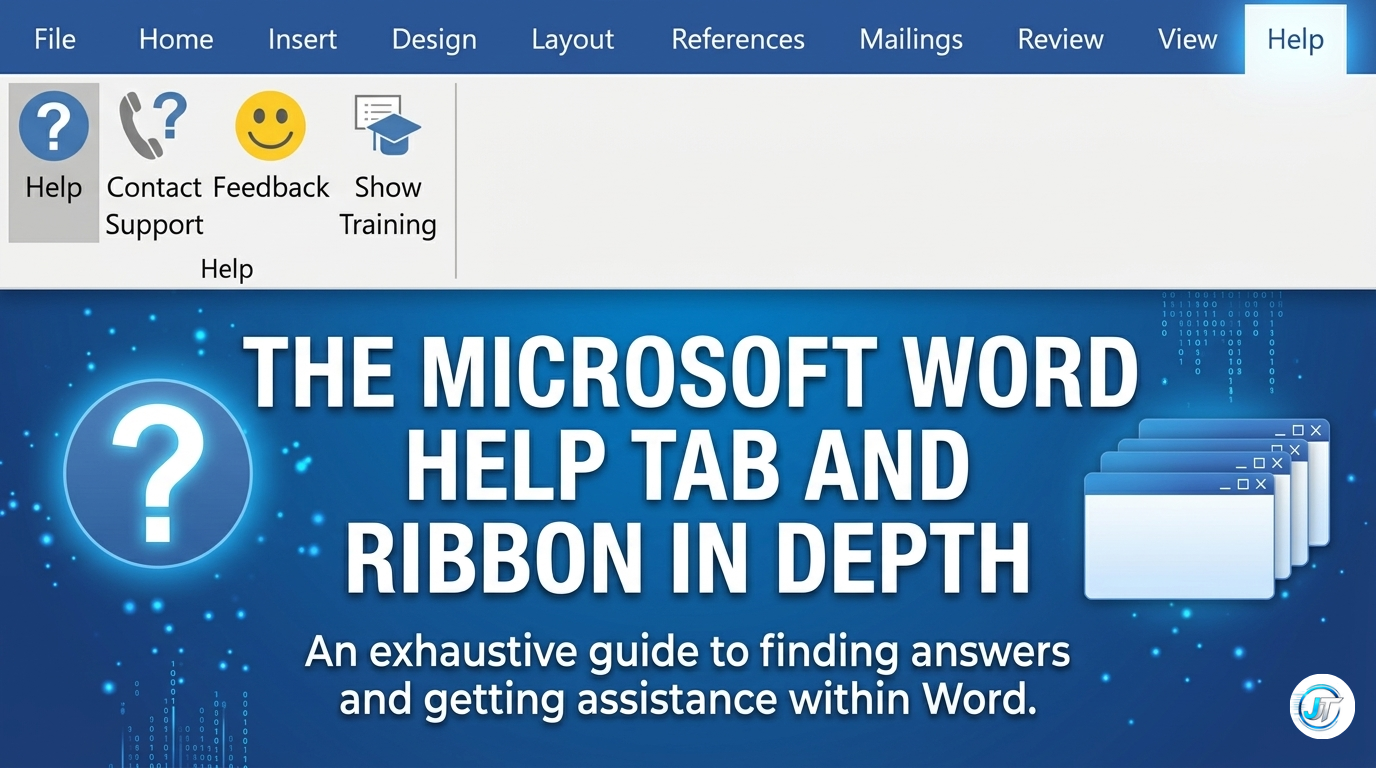
The Help ribbon is straightforward, consisting of a single group with four key icons:
1. Help
- Function: Launch the primary support pane to search for instructions or information on how to use specific Office features.
2. Contact Support
- Function: Connects you directly with Microsoft’s technical support team for personalized assistance.
3. Feedback
- Function: Allows you to send comments, report bugs, or suggest new features to help Microsoft improve the Office experience.
4. Show Training
- Function: Provides access to a library of online tutorials and learning paths to help you master Word at your own pace.