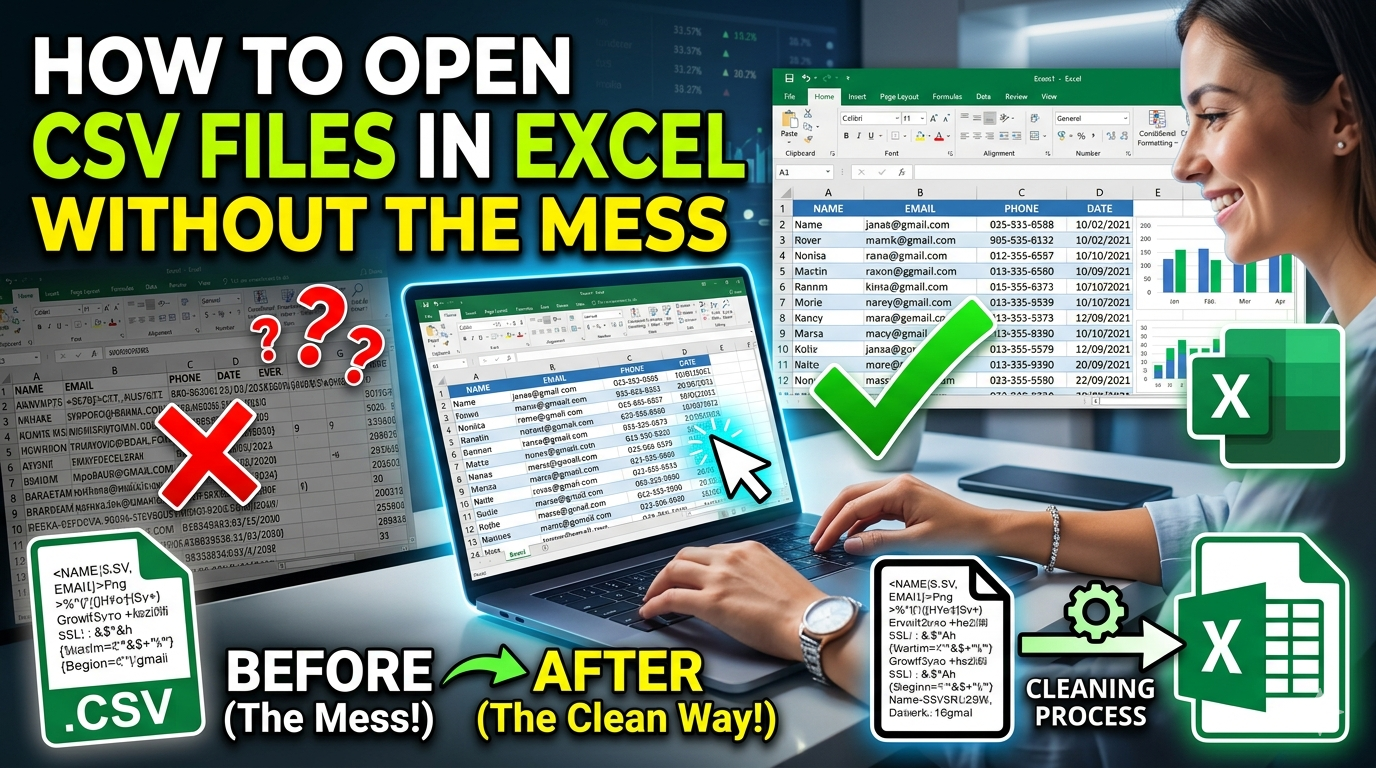
Have you ever downloaded a data set only to find it’s in a CSV format? While Microsoft Excel is the go-to app for these files, opening them directly often results in a cluttered, unreadable mess of text rather than the clean spreadsheet you were expecting.
What is a CSV file?
For those unfamiliar, CSV stands for Comma-Separated Values. It’s a plain-text file format designed to store structured data in a table-like layout. Usually, each data point in a CSV is separated by a comma (,) or a semicolon (;). This simplicity makes it a universal favorite for importing data into databases.
The problem is that Excel sometimes struggles to recognize these separators automatically, dumping everything into a single column. If you’re staring at a jumbled screen of commas and text, don’t worry—there’s an easy fix.
Here is how to open and format CSV files in Excel (versions 2007 through 2019 and Microsoft 365) to ensure your data stays organized and easy to read.
How to Fix a Messy CSV File in Excel
Follow these steps to transform your raw data into a clean, professional spreadsheet:
- Locate your file: Go to the folder where your CSV is saved. You’ll usually see the Excel icon with a small “a” or “csv” label.
- Open the file: Right-click the file and select Open with > Excel.
- Select your data: Once the file opens, you’ll likely see all the text crammed into Column A. Click the “A” header at the top to highlight the entire column.
- Launch the Wizard: Navigate to the Data tab on the top ribbon and click Text to Columns.
- Choose the File Type: A wizard will pop up. Select Delimited (this tells Excel that a specific character separates your data) and click Next.
- Set your Delimiters: Under the “Delimiters” section, check the box for Comma (or Semicolon, depending on your file). You’ll see a preview of your data shifting into neat columns at the bottom. Click Next.
- Finalize Formatting: In the “Column data format” section, leave it as General unless you have specific date or currency needs. Click Finish.
That’s it! Your data should now be perfectly aligned in individual columns, making it much easier to analyze and edit.
Some people suggest changing your computer’s “Region” settings to the United States to fix CSV formatting issues globally. While this works, we don’t recommend it, as it can mess with your time zone, currency symbols, and other system-wide settings. Stick to the “Text to Columns” method—it’s safer and more precise.